Developer Productivity Systems: Tools and Workflows That Actually Work
Developer Productivity Systems: Tools and Workflows That Actually Work
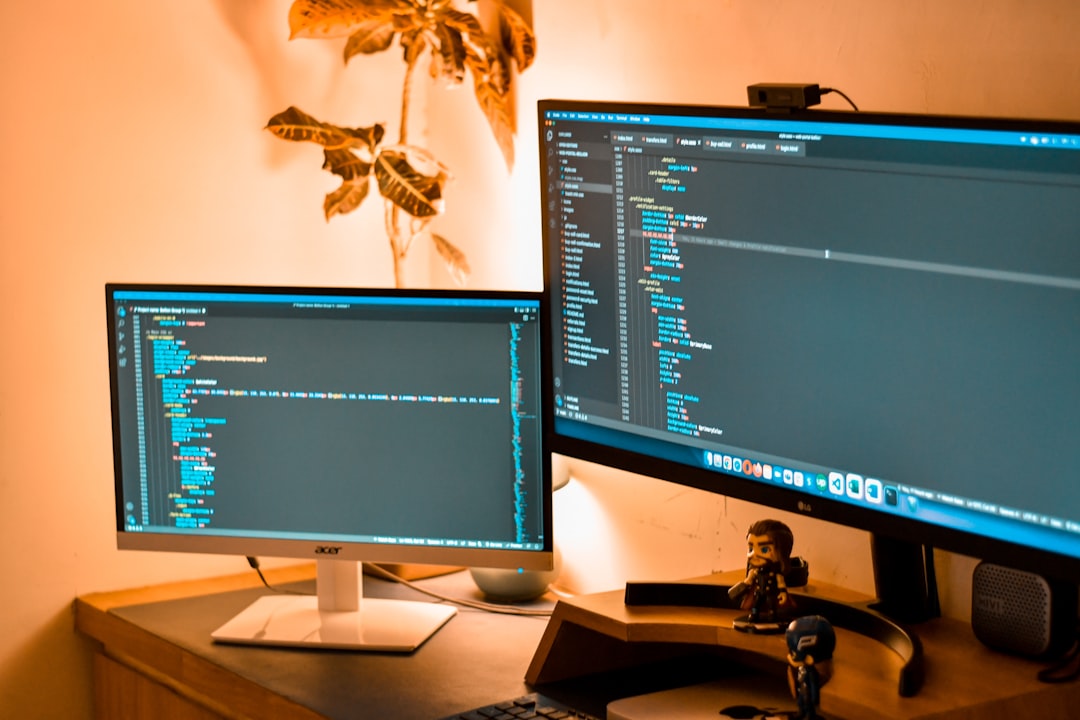
Photo by Ajay Gorecha on Unsplash
Most productivity advice is generic and vague. This guide is specifically about developer productivity -- the concrete tools, configurations, and workflows that eliminate friction from your daily work. Not philosophy, not time management theory. Just things you can set up today that will save you real time.

Dotfiles Management
Your shell configuration, editor settings, and tool configs are the foundation of your development environment. Managing them properly means you can set up a new machine in minutes, not hours.
Getting Started with Dotfiles
# Initialize a dotfiles repo
mkdir ~/dotfiles
cd ~/dotfiles
git init

# Move your config files here
mv ~/.zshrc ~/dotfiles/zshrc
mv ~/.gitconfig ~/dotfiles/gitconfig
mv ~/.config/starship.toml ~/dotfiles/starship.toml

# Create symlinks back
ln -sf ~/dotfiles/zshrc ~/.zshrc
ln -sf ~/dotfiles/gitconfig ~/.gitconfig
ln -sf ~/dotfiles/starship.toml ~/.config/starship.toml
Automated Setup Script
#!/bin/bash
# install.sh -- idempotent dotfiles installation

set -euo pipefail

DOTFILES="$HOME/dotfiles"

# Symlink dotfiles
link() {
  local src="$DOTFILES/$1"
  local dst="$2"
  mkdir -p "$(dirname "$dst")"

  if [ -L "$dst" ]; then
    rm "$dst"
  elif [ -f "$dst" ]; then
    mv "$dst" "$dst.backup"
    echo "Backed up existing $dst"
  fi

  ln -sf "$src" "$dst"
  echo "Linked $src -> $dst"
}

link "zshrc" "$HOME/.zshrc"
link "gitconfig" "$HOME/.gitconfig"
link "starship.toml" "$HOME/.config/starship.toml"
link "alacritty.toml" "$HOME/.config/alacritty/alacritty.toml"
link "tmux.conf" "$HOME/.tmux.conf"

# Install tools if missing
command -v starship >/dev/null || curl -sS https://starship.rs/install.sh | sh
command -v fzf >/dev/null || git clone --depth 1 https://github.com/junegunn/fzf.git ~/.fzf && ~/.fzf/install
command -v zoxide >/dev/null || curl -sSfL https://raw.githubusercontent.com/ajeetdsouza/zoxide/main/install.sh | sh
command -v eza >/dev/null || cargo install eza

echo "Dotfiles installation complete."
Essential Shell Configuration
# .zshrc -- the parts that actually matter

# History configuration (often overlooked, saves hours over time)
HISTSIZE=50000
SAVEHIST=50000
HISTFILE=~/.zsh_history
setopt SHARE_HISTORY          # Share history between sessions
setopt HIST_EXPIRE_DUPS_FIRST # Remove duplicates first when trimming
setopt HIST_IGNORE_DUPS       # Don't record duplicate commands
setopt HIST_FIND_NO_DUPS      # Don't show duplicates in search

# Modern replacements for classic tools
alias ls="eza --icons"
alias ll="eza -la --icons --git"
alias cat="bat"
alias find="fd"
alias grep="rg"
alias top="btop"
alias du="dust"
alias diff="delta"

# Zoxide -- smarter cd
eval "$(zoxide init zsh)"
# Usage: z project-name  (instead of cd ~/projects/my-long-project-name)

# fzf -- fuzzy finder for everything
export FZF_DEFAULT_COMMAND='fd --type f --hidden --follow --exclude .git'
export FZF_CTRL_T_COMMAND="$FZF_DEFAULT_COMMAND"
export FZF_ALT_C_COMMAND='fd --type d --hidden --follow --exclude .git'

# Quick project navigation
p() {
  local dir
  dir=$(fd --type d --max-depth 2 . ~/projects ~/work | fzf --preview 'eza -la {}')
  [ -n "$dir" ] && cd "$dir"
}

# Search command history with fzf
bindkey '^R' fzf-history-widget
Git Productivity
Git is the tool you use most. Small efficiency gains here compound enormously.
Git Aliases That Save Real Time
# ~/.gitconfig
[alias]
  s = status --short --branch
  co = checkout
  cb = checkout -b
  cm = commit -m
  ca = commit --amend --no-edit
  d = diff
  ds = diff --staged
  lg = log --graph --oneline --decorate -20
  lga = log --graph --oneline --decorate --all -20
  undo = reset HEAD~1 --mixed
  wip = !git add -A && git commit -m 'WIP'
  unwip = reset HEAD~1 --mixed
  sync = !git fetch --all --prune && git rebase origin/main
  cleanup = !git branch --merged | grep -v '\\*\\|main\\|master' | xargs -n 1 git branch -d

[pull]
  rebase = true

[push]
  autoSetupRemote = true

[rerere]
  enabled = true    # Remember conflict resolutions

[diff]
  algorithm = histogram
  colorMoved = default

[merge]
  conflictStyle = zdiff3

[core]
  pager = delta

[delta]
  navigate = true
  side-by-side = true
  line-numbers = true
Git Worktrees for Parallel Work
Instead of stashing or switching branches, use worktrees to have multiple branches checked out simultaneously:
# Create a worktree for a feature branch
git worktree add ../my-project-feature feature-branch

# Create a worktree for a bug fix
git worktree add ../my-project-hotfix hotfix-branch

# List worktrees
git worktree list

# Clean up when done
git worktree remove ../my-project-feature
This is invaluable when you need to quickly review a PR or fix a bug without losing your current working state.
Interactive Rebase with Autosquash
# Mark a commit as a fixup for an earlier commit
git commit --fixup=abc1234

# Later, automatically squash fixup commits
git rebase -i --autosquash main

# Enable autosquash by default
git config --global rebase.autoSquash true
Code Snippets and Templates
Typing the same patterns repeatedly is a waste of time. Build a snippet library.
VS Code Snippets
// .vscode/project.code-snippets
{
  "React Functional Component": {
    "prefix": "rfc",
    "body": [
      "interface ${1:Component}Props {",
      "  $2",
      "}",
      "",
      "export function ${1:Component}({ $3 }: ${1:Component}Props) {",
      "  return (",
      "    <div>",
      "      $0",
      "    </div>",
      "  );",
      "}"
    ],
    "description": "React Functional Component with TypeScript props"
  },
  "Express Route Handler": {
    "prefix": "handler",
    "body": [
      "export async function ${1:handler}(req: Request, res: Response) {",
      "  try {",
      "    $0",
      "    res.json({ success: true });",
      "  } catch (error) {",
      "    console.error('${1:handler} failed:', error);",
      "    res.status(500).json({ error: 'Internal server error' });",
      "  }",
      "}"
    ]
  },
  "Test Block": {
    "prefix": "desc",
    "body": [
      "describe('${1:subject}', () => {",
      "  it('should ${2:behavior}', () => {",
      "    $0",
      "  });",
      "});"
    ]
  }
}
File Templates with Scaffolding Scripts
#!/bin/bash
# scripts/new-component.sh -- scaffold a new React component

NAME=$1
DIR="src/components/$NAME"

if [ -z "$NAME" ]; then
  echo "Usage: new-component.sh ComponentName"
  exit 1
fi

mkdir -p "$DIR"

cat > "$DIR/$NAME.tsx" << EOF
interface ${NAME}Props {
  className?: string;
}

export function ${NAME}({ className }: ${NAME}Props) {
  return (
    <div className={className}>
      ${NAME}
    </div>
  );
}
EOF

cat > "$DIR/$NAME.test.tsx" << EOF
import { render, screen } from "@testing-library/react";
import { ${NAME} } from "./${NAME}";

describe("${NAME}", () => {
  it("renders without crashing", () => {
    render(<${NAME} />);
    expect(screen.getByText("${NAME}")).toBeInTheDocument();
  });
});
EOF

cat > "$DIR/index.ts" << EOF
export { ${NAME} } from "./${NAME}";
EOF

echo "Created component at $DIR"
Want more productivity guides? Get guides like this in your inbox — DevTools Guide delivers one free deep-dive every week.
Terminal Multiplexing with tmux
tmux lets you manage multiple terminal sessions, split panes, and persist sessions across disconnections.
Essential tmux Configuration
# ~/.tmux.conf
# Change prefix to Ctrl+A (easier to reach than Ctrl+B)
set -g prefix C-a
unbind C-b
bind C-a send-prefix

# Start windows and panes at 1 (not 0)
set -g base-index 1
setw -g pane-base-index 1

# Renumber windows when one is closed
set -g renumber-windows on

# Split panes with | and -
bind | split-window -h -c "#{pane_current_path}"
bind - split-window -v -c "#{pane_current_path}"

# Navigate panes with vim keys
bind h select-pane -L
bind j select-pane -D
bind k select-pane -U
bind l select-pane -R

# Resize panes with vim keys
bind -r H resize-pane -L 5
bind -r J resize-pane -D 5
bind -r K resize-pane -U 5
bind -r L resize-pane -R 5

# Mouse support
set -g mouse on

# Increase scrollback buffer
set -g history-limit 50000

# Fast escape time (for vim users)
set -sg escape-time 0

# True color support
set -g default-terminal "tmux-256color"
set -ag terminal-overrides ",xterm-256color:RGB"
tmux Session Management
# Create named sessions for different projects
tmux new-session -s web -d
tmux new-session -s api -d
tmux new-session -s infra -d

# Script to start a development session
#!/bin/bash
# dev-session.sh
SESSION="dev"

tmux new-session -d -s $SESSION -c ~/projects/my-app

# Editor window
tmux rename-window -t $SESSION:1 "editor"
tmux send-keys -t $SESSION:1 "nvim ." C-m

# Server window
tmux new-window -t $SESSION -n "server" -c ~/projects/my-app
tmux send-keys -t $SESSION:2 "bun run dev" C-m

# Git window
tmux new-window -t $SESSION -n "git" -c ~/projects/my-app

# Logs window (split into two panes)
tmux new-window -t $SESSION -n "logs" -c ~/projects/my-app
tmux split-window -h -t $SESSION:4
tmux send-keys -t $SESSION:4.1 "tail -f logs/app.log" C-m
tmux send-keys -t $SESSION:4.2 "tail -f logs/error.log" C-m

# Select the editor window
tmux select-window -t $SESSION:1

tmux attach -t $SESSION
Time Tracking for Developers
Tracking where your time goes reveals surprising patterns. Most developers overestimate coding time and underestimate context-switching costs.
Time Tracking Tools
| Tool | Approach | Free? | Best For |
|---|---|---|---|
| Toggl Track | Manual timer | Free tier | Freelancers, billing |
| WakaTime | Automatic (editor plugin) | Free tier | Understanding coding patterns |
| ActivityWatch | Automatic (system-level) | Free (OSS) | Full computer usage tracking |
| Clockify | Manual timer | Free | Teams |
| RescueTime | Automatic (system-level) | Free tier | Identifying distractions |
WakaTime Setup
WakaTime tracks time automatically based on which files you edit. Install the plugin for your editor and forget about it.
# Install WakaTime CLI
pip install wakatime

# VS Code: Install "WakaTime" extension
# Vim/Neovim: Install wakatime/vim-wakatime
# JetBrains: Install from marketplace
WakaTime's dashboard shows:
- Time spent per project
- Time spent per language
- Time spent per file
- Coding patterns (most productive hours, days)
Automated Time Logging with Git
# git-hours -- estimate time from commit history
npx git-hours

# Simple script to track daily coding time from git
#!/bin/bash
# coding-time.sh -- how much did I code today?
echo "Commits today:"
git log --oneline --since="today" --author="$(git config user.name)"
echo ""
echo "Files changed:"
git diff --stat HEAD~$(git log --oneline --since="today" | wc -l) 2>/dev/null || echo "No changes"
Workspace Automation
Task Runners with Just
just is a modern alternative to make for running project-specific commands:
# justfile
default:
  @just --list

# Development
dev:
  bun run dev

# Testing
test:
  bun test

test-watch:
  bun test --watch

# Code quality
lint:
  bunx biome check .

format:
  bunx biome format --write .

check: lint test
  echo "All checks passed"

# Database
db-up:
  docker compose up -d postgres redis

db-migrate:
  bun run prisma migrate dev

db-reset:
  bun run prisma migrate reset

db-studio:
  bun run prisma studio

# Deployment
deploy-staging:
  git push origin main:staging

deploy-production:
  @echo "Are you sure? [y/N]" && read ans && [ $${ans:-N} = y ]
  git push origin main:production

# Utilities
clean:
  rm -rf node_modules dist .next .turbo

nuke: clean
  bun install
VS Code Workspace Settings
// .vscode/settings.json -- project-specific settings
{
  "editor.formatOnSave": true,
  "editor.defaultFormatter": "biomejs.biome",
  "editor.codeActionsOnSave": {
    "source.organizeImports.biome": "explicit"
  },
  "typescript.preferences.importModuleSpecifier": "non-relative",
  "search.exclude": {
    "**/node_modules": true,
    "**/dist": true,
    "**/.next": true,
    "**/coverage": true
  },
  "files.associations": {
    "*.css": "tailwindcss"
  }
}
// .vscode/extensions.json -- recommended extensions for the team
{
  "recommendations": [
    "biomejs.biome",
    "bradlc.vscode-tailwindcss",
    "prisma.prisma",
    "dbaeumer.vscode-eslint",
    "eamodio.gitlens",
    "wakatime.vscode-wakatime"
  ]
}
Focus and Deep Work Techniques
The Pomodoro Technique (Adapted for Developers)
Standard Pomodoro (25min work / 5min break) is too short for most coding tasks. A modified version works better:
- 50 minutes of focused work (enough time to get into flow)
- 10 minute break (stand up, move around, rest your eyes)
- After 3 cycles, take a 30-minute break
# Simple CLI pomodoro timer
# Install: cargo install porsmo
porsmo pomodoro 50 10 30  # 50min work, 10min break, 30min long break
Notification Management
# macOS: Focus mode via CLI
# Create a "Coding" focus in System Settings, then:
shortcuts run "Turn On Coding Focus"

# Linux: Do Not Disturb via dunstctl
dunstctl set-paused true   # Pause notifications
dunstctl set-paused false  # Resume
Communication Batching
The most impactful productivity change isn't a tool -- it's checking Slack/email only at designated times instead of reactively. Configure your communication tools:
- Slack: Set status to "Focused -- will respond at 2pm" and pause notifications
- Email: Check twice daily (morning and afternoon)
- GitHub notifications: Review once daily, not as they arrive
Building Your System
The key is to start small and iterate. Here's a prioritized adoption plan:
Week 1: Shell Efficiency
- Set up dotfiles repo with your current configs
- Install modern CLI tools (fzf, zoxide, eza, bat, ripgrep)
- Add your most-used git aliases
Week 2: Editor and Project Setup
- Create project-specific snippets for your most common patterns
- Set up VS Code workspace settings for your project
- Add a justfile or Makefile with common commands
Week 3: Automation and Tracking
- Install WakaTime or similar to understand your coding patterns
- Set up tmux sessions for your common workflows
- Create scaffolding scripts for repetitive file creation
Week 4: Review and Refine
- Look at your WakaTime data -- where is time going?
- Identify remaining friction points and automate them
- Share your dotfiles with your team
Summary
Developer productivity isn't about working faster -- it's about removing friction. Every second spent waiting for a command, retyping a pattern, or setting up an environment is a second not spent solving problems. The tools and techniques here are all incremental improvements, but they compound. A developer who saves 30 minutes a day through better tooling saves over 120 hours a year. That's three full work weeks reclaimed for actual thinking and building.